
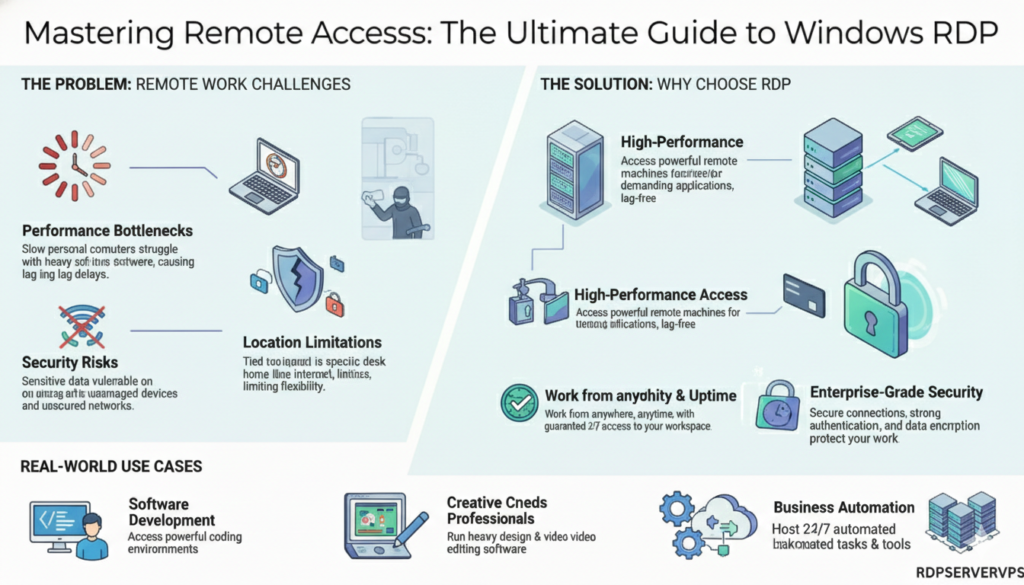
Remote work means you can control a powerful Windows machine from any device. Windows RDP lets you access a remote Windows computer from another device, so you can manage applications and files without being at the host machine.
It removes most hardware limits: even a device with limited hardware can use a more capable Windows computer through Remote Desktop.
This guide covers how Windows RDP works in practice: setup, essential security measures and performance tuning.
What Is Windows RDP?
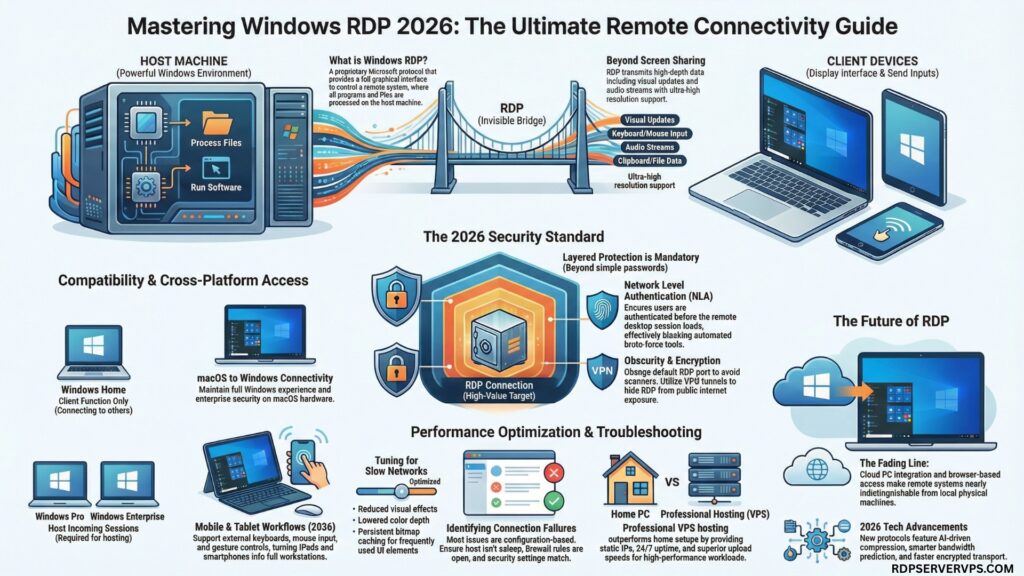
Windows RDP is a proprietary remote access protocol developed by Microsoft. It lets you connect to a Windows system over a network using a full graphical interface.
What makes RDP different from basic screen-sharing tools is the depth of control. With RDP you do not just view a screen: programs run and files are processed on the remote machine, so the remote PC or server does the work.
Under the hood, RDP transmits:
- Visual interface updates
- Keyboard input
- Mouse movement
- Audio streams
- Clipboard and file data
Modern RDP connections support high resolutions, efficient compression, low-latency transport and adaptive streaming that helps on unstable networks.
How Windows RDP Works
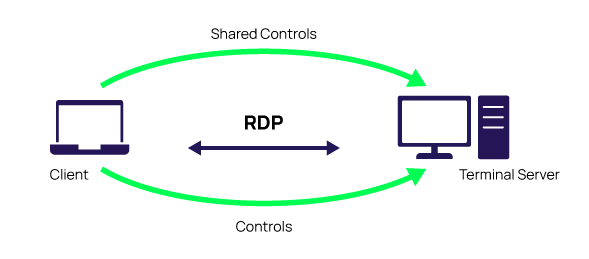
RDP uses a client-server model. The host machine (PC or server) runs the Remote Desktop service, and the client device starts the connection with an RDP application.
Once connected:
- The host renders the desktop interface.
- The client displays it live.
- Your keyboard and mouse control the host in real time.
By default, RDP uses port 3389 over TCP, and newer versions also use UDP for smoother performance.
Windows Edition Compatibility: Home vs Pro
Windows Home includes the RDP client only. You can connect to other computers, but you cannot host incoming RDP sessions. Windows Pro and Enterprise include the RDP server, so others can connect to them. If you are on Windows Home and need to host sessions, you need Windows Pro or a Windows server.
How to Connect to Another PC with Remote Desktop
To control one PC from another, use the built-in Remote Desktop tool. It is part of Windows, so you do not need a third-party client on Windows.
- On the remote PC, open Settings → System → Remote Desktop and turn on Remote Desktop (Windows Pro or Enterprise).
- Note the PC name or IP address.
- On your client device, open Remote Desktop Connection (mstsc).
- Enter the PC name or IP address and select Connect.
- Sign in with an authorized account and password.
Once connected, you can:
- Access files
- Run applications on the remote machine
- Install software
- Manage background processes
Using Windows RDP from a Mac
Mac users can connect to Windows PCs and servers with Microsoft’s Windows App (formerly Microsoft Remote Desktop). This lets them work with Windows applications without a physical Windows PC.
With the Windows App on a Mac:
- You connect directly to Windows systems.
- You get the full Windows desktop.
- Security depends on the same settings as any other RDP client.
Mac-to-Windows remote setups are common in development teams and agencies.
Building a Secure Remote Connection
RDP can be secure if it is configured correctly. It is also a common target when exposed to the internet, so layer your protection. Experienced administrators typically use:
- No public 3389: never expose port 3389 directly to the internet. Use a VPN or an RD Gateway.
- Strong passwords and MFA: use unique passwords and multi-factor authentication where possible.
- Network Level Authentication (NLA): require users to authenticate before a remote session begins.
- Account lockout: slow down password guessing.
- Updates: install Windows security updates promptly.
- Firewall rules: allow RDP only from trusted IP addresses.
Changing the default port reduces scan noise but is not a real Defense on its own. See our guide to changing the RDP port. Together, these practices help IT teams manage Windows systems remotely while keeping access secure.
Why Windows RDP Is Useful for Remote Work
Windows RDP supports several practical uses, including remote server administration, accessing business applications, managing files, and working with a Windows desktop from different locations.
Performance Tuning for Slow Networks
Lag often comes from unnecessary graphical overhead. You can tune RDP:
- Reduce visual effects to lower bandwidth use.
- Turn on persistent bitmap caching for commonly used interface elements.
- Lower the color depth to reduce data transfer.
- Use a stable wired connection when possible.
With some tuning, RDP can run acceptably even on limited internet speeds.
Troubleshooting Common RDP Problems
Most issues are configuration mistakes rather than technical failures.
- Connection fails: check that the host PC is on and awake, and that firewall rules allow RDP (port 3389 or your custom port).
- Authentication errors: install pending Windows updates and check that the account has permission to use Remote Desktop.
- Black screen: update the GPU driver, lower the color depth, or disable UDP transport in the client.
Mobile and Tablet Access
You can also reach a Windows remote desktop from a supported smartphone or tablet. Microsoft offers Remote Desktop clients for iOS and Android. Modern mobile clients support:
- External keyboards
- Mouse input
- High-resolution scaling
- Gesture controls
Why Use a Windows Server for RDP
A dedicated Windows VPS gives you a remote environment for running applications, managing files and accessing Windows resources without depending on a personal home computer.
Home internet often suffers from:
- Power outages
- Changing IP addresses
- Low upload speeds
- Router restrictions
A hosted Windows server typically offers:
- A static IP
- A high-speed network
- 24/7 uptime
- Full administrative control
A hosted server is usually more reliable than a home PC.
What to Consider When Using Windows RDP
When choosing a Windows RDP solution, focus on the features and resources available in the selected hosting plan.
- Server resources: check the available CPU, RAM and storage.
- Network performance: consider connection stability and latency.
- Security: use strong authentication and appropriate firewall settings.
- Compatibility: make sure your applications and devices support the required Remote Desktop features.
Conclusion
Windows RDP is a widely used, built-in way to reach a remote Windows machine, from simple connections to server environments. If you only need occasional access, the built-in Remote Desktop tool is enough. For ongoing work, a hosted Windows server gives you a stable remote environment. Still deciding? See RDP vs VPS.
Need a Windows RDP Server?
Need a reliable remote desktop? Get a Windows RDP server. With our Windows RDP servers you get:
- Server Locations: US, UK, Germany & Europe
- Network & Speed: 1 Gbps port with low latency
- Access: Full Administrator Access & Dedicated IP
- Starting Price: Plans start from $4.99/month
Frequently Asked Questions About Windows RDP
1: What is Windows RDP, and how does it work?
RDP (Remote Desktop Protocol) is a Microsoft protocol that lets you control another Windows computer over a network.
2: Is Windows RDP secure for remote work?
It can be, if you use strong passwords, NLA and MFA, and keep port 3389 off the public internet.
3: Can I use Windows RDP from Mac or mobile devices?
Yes. Microsoft offers Remote Desktop clients for macOS, iOS and Android.
4: Is Windows RDP better than other remote desktop tools?
It depends on the use. RDP is built into Windows and gives you a full remote desktop, while some other tools are easier to set up across platforms. Performance depends on the server hardware, your network connection and the hosting plan.